May 9th, 2026

New
Introduced a new dropdown menu for Pleth Shapes. Similar to ECG rhythms, instructors can now select different waveform morphologies to change the visual shape of the plethysmograph on the student monitor.
Note: The waveform rate remains intelligently linked to the patient's Heart Rate.
Added a new vital slider called Pleth Amplitude (Range 0-100). This allows instructors to manually adjust the vertical amplitude of the waveform.
0: Results in a flat line (non-pulsatile).
100: Displays a full-strength waveform.
Proportional Scaling: Adjusting this slider condenses the waveform vertically without affecting the horizontal timing or baseline, simulating varying perfusion levels.
Introduced Pulse Transit Time (PTT) controls to provide a more clinically accurate relationship between the ECG and the SpO2 waveform.
Dynamic Waveform Positioning: The Pulse Ox pleth waveform now intelligently sits to the right of the ECG R-wave rather than overlapping it, simulating the physical time it takes for a pressure wave to reach the periphery.
New PTT Slider: Instructors can now manually adjust the transit delay between 150ms and 500ms (Default: 250ms).
Improved
Optimized the behavior of the Pulse Oximetry Pleth so that adjusting the SpO2 % value now only updates the numerical data on screen. Previously, lowering the percentage would also shrink the waveform; these are now independent to allow for more accurate clinical simulations.
To improve clinical clarity and ensure the student monitor matches real-world medical equipment, we have standardized the display of units across all vital sign tiles.
Integrated Units: Units are now appended directly to the vital label (e.g., Heart Rate: bpm) instead of taking up a separate row. This maximizes screen space while providing immediate context for the data being viewed.
Updated the instructor controller with a new layout and streamlined design to ensure a clearer viewing experience and easier navigation across all your devices, allowing you to focus on the simulation and see exactly what is happening at a glance.
Fixed
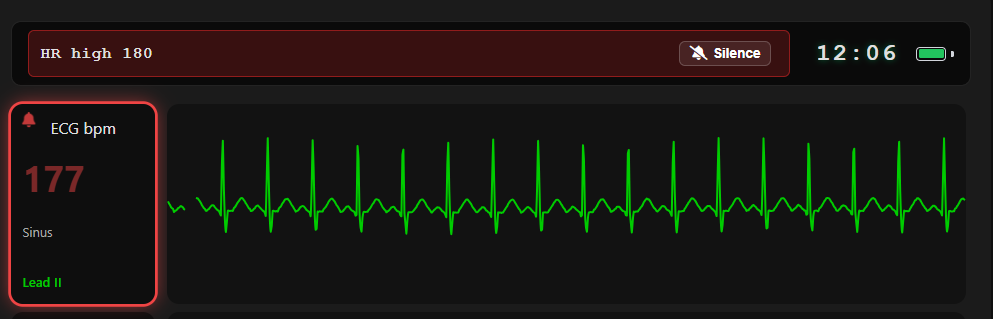
Updated the header clock to a 24-hour military format and removed the AM/PM designators to better align with professional clinical monitoring standards.
May 2nd, 2026
New
Improved
Fixed

New
Persistent Sessions: The app now automatically remembers your last session ID across browser restarts and tab closures, so you can pick up exactly where you left off.
Smart Resume Prompt: If you return after 60 minutes of inactivity, you’ll be greeted with a "Welcome Back" prompt. You can now choose to Continue Previous Session to keep your data or Start New Session for a fresh slate.
Community Success Stories: Added a new Use Cases gallery featuring real-world feedback and hardware setups from EMS educators and healthcare professionals.
Smart Search & Filtering: Quickly find inspiration by filtering articles by Country, Provider Level (EMT, Nursing, etc.), or Training Environment (Skills Lab, MCI Simulation, etc.).
Interactive Submission Form: Share your own configuration via the Submit Your Use Case form. Help the community by detailing your hardware (tablets, TVs, laptops) and how the app improves your student's experience.
EtCO2: You can now toggle EtCO2 measurements between mmHg and kPa on the controller.
Glucose: You can now toggle glucose measurements between mmol/L and mg/dL on the controller.
Improved
Manual Vital Synchronization: To prevent accidental vital changes during a live simulation, selecting a new ECG rhythm no longer automatically overrides current patient vitals.
"Set Vitals to Default" Button: Added a new control toggle underneath the rhythm dropdown. This allows the controller to explicitly choose when to sync the patient's vitals to the rhythm's pre-set defaults (e.g., at the start of a scenario), while maintaining the current vitals if only a rhythm change is desired mid-simulation.
Real-Time AED Status: Enhanced the AED module to sync state across all devices in a session. When one display initiates an "Analyze" sequence, all other connected displays will now show the automation progress in real-time.
Decoupled SpO2% from Waveform Height: Optimized the behavior of the Pulse Oximetry Pleth so that adjusting the SpO2% value now only updates the numerical data on screen.
Independent Scaling: Waveform amplitude is now controlled exclusively by the new Pulse Oximetry Pleth Strength slider (range 0-10), ensuring that clinical values and visual waveforms can be adjusted independently for more realistic simulation scenarios.
Fixed
Dynamic Waveform Rate: Resolved an issue where the Pulse Ox pleth waveform remained at a constant rate regardless of patient vitals.
Heart Rate Integration: The waveform is now successfully linked to the Heart Rate slider.
Unified Controller Layout: Fixed a bug where light and dark modes used different spacing and element positioning. The controller interface is now consistently condensed across both themes, ensuring buttons and sliders remain in the same location regardless of your display mode.
Reduced Vertical Padding: Optimized the mobile interface by reducing excessive vertical white space. This ensures more content is visible on the screen at once, providing a tighter and more professional look for users on smaller devices.
Darkened the green color for ECG waveforms and text to improve contrast and readability against light backgrounds.
Status Indicator Correction: Resolved a bug where the green/red status dot on the vitals card would turn red if Respiratory Rate (RR) was set to "Not Visible," even if EtCO2 was still active.
Visibility Lock: Fixed a critical bug where using the AED trainer would cause all active vitals (ECG, SpO2, etc.) to automatically switch to "Not Visible."
April 25th, 2026
New
Improved
Fixed

New Features
We’ve moved the Display Settings away from the student monitor and placed full control exactly where it belongs: with the instructor. This update allows for a more "organic" simulation experience where vitals are only revealed as students perform the necessary clinical interventions.
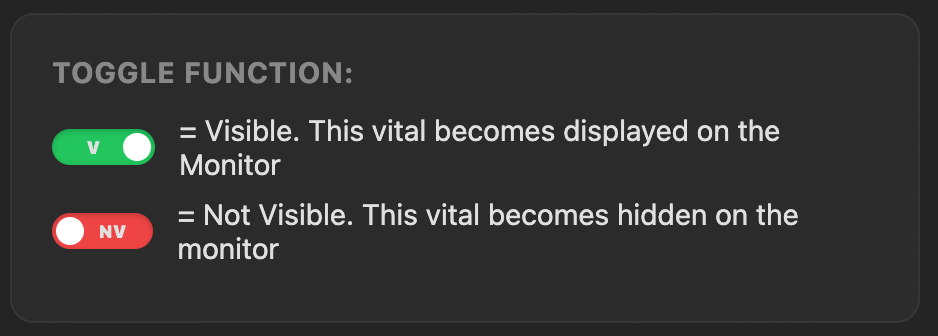
Real-Time Controller Toggles: Each vital sign on the Control Vitals page now features an individual toggle.
V (Visible): The toggle turns Green, and the vital appears on all connected student monitors instantly.
NV (Not Visible): The toggle turns Red, and the vital is hidden from the student view.
Instant Updates: Toggle changes are pushed in real-time. There is no need to click the "Apply New Vitals" button to hide or show a parameter.
Master Visibility Toggle: A "Global" toggle at the top of the vitals list allows instructors to show or hide all parameters simultaneously with a single click.
Student View Indicators: When a vital is hidden, a small red dot appears in the upper right-hand corner of the monitor tile to indicate the sensor is "off." This dot turns green once the vital is toggled on.
Scenario Setup: Before the students enter the room, use the Master Toggle on the controller to set all vitals to NV. This creates a "blank" monitor, simulating a patient who has not yet been hooked up to equipment.
Revealing Vitals: As students apply leads or sensors (e.g., placing a pulse oximeter), click the toggle next to the corresponding vital (e.g., SpO2 and Pulse Rate).
Dynamic Assessment: If a student removes a lead or a sensor falls off during the simulation, toggle that vital to NV to prompt the students to troubleshoot their equipment.
Waveforms Identification Practice: Use the dedicated ECG Toggle to display the cardiac rhythm independently of the numerical heart rate value to test the students' rhythm recognition skills.
Note: When creating a new session, the system defaults to ON (V) with red status indicators, allowing you to build the clinical picture from scratch every time.
We are excited to announce the release of the AED Training Simulator, a comprehensive update designed to provide students with a realistic, high-stakes environment for practicing cardiac emergency response.
Integrated Student View: The AED Simulator is now located directly on the Display Monitor Page, ensuring students can interact with it in their primary training view.
Automated CPR Clock: Once a shock is delivered, a 2:00 CPR countdown begins automatically.
Metronome: A 110 BPM metronome click plays throughout the CPR cycle to guide chest compressions.
Mute Toggle: An audio icon has been added to the AED display to mute the CPR metronome if necessary.
Auto-Analysis: At the end of the 2-minute cycle, the system triggers an "Analyzing patient" alert (audio and visual).
Smart Shock Logic: * Energy is fixed at 200 J (standard AED protocol).
If a shockable rhythm is detected, the system charges for 7 seconds, then repeats the prompt: "Shock Ready, press flashing red button, do not touch the patient" until the shock is delivered.
Instructor Shock Outcomes: Instructors can now pre-determine the result of a shock via a new dropdown on the controller. Options include:
No Effect
V-Tach
V-Fib
Asystole
Normal Sinus
Sinus Tachycardia
Initiate Training: Launch the Display Monitor for the student and the Control Vitals page for the instructor.
Enable AED Mode: On the controller, navigate to the AED section and toggle the simulator ON.
Set the Outcome: Use the Shock Outcome dropdown to select what rhythm the patient will convert to after the student delivers a shock.
Analyze & Shock:
The student clicks Analyze on the monitor.
If the current rhythm is shockable (e.g., V-Fib), the AED will prompt the student to clear the patient and deliver the shock.
Perform CPR: After the shock, the CPR Clock and metronome will start. The instructor does not need to reset the clock; it will run for the full 2 minutes regardless of any rhythm changes made on the backend.
Reset: To restart the simulation from the beginning, use the Reset Monitor AED button on the controller.
We’ve introduced Cookie Controls to improve how the app handles browser restarts and inactivity. The platform now remembers your last session ID across tabs and window closures, but will intelligently prompt you with a choice—"Continue Previous Session" or "Start New Session"—after 60 minutes of inactivity to ensure you don't accidentally join an outdated simulation.
Improvements
We have updated the instructor dashboard with more intuitive button labels and a clear color-coded system to improve navigation speed and prevent accidental resets during live sessions.
Updated Button Text:
“Apply New Settings” is now “Apply New Vitals”
“Reset to Default” is now “Reset to Default Vitals”
“Display Monitor” is now “Go to Display Monitor”
Enhanced Visual Logic:
Action (Bright Green): The “Apply New Vitals” button is now bright green to clearly highlight the primary action for pushing data to students.
Navigation (Blue): The “Go to Display Monitor” button is now blue to distinguish screen navigation from data controls.
Warning (Red): Critical actions like “Reset AED” and “Reset to Default Vitals” remain red to indicate high-impact changes.
These updates are live across both Desktop and Mobile views to ensure a consistent experience regardless of which device you use to control your simulation.
We have streamlined the instructor dashboard to give you more precise control over what students see on their monitors, allowing for a seamless transition between full vitals monitoring and dedicated AED training.
Master Display Monitor Toggle: A new "Display Monitor" toggle allows you to hide the entire vitals suite (ECG, SpO2, EtCO2, BP, Temp, and Glucose) with one click. This is perfect for scenarios where students must first "power on" the monitor or when you want to use the screen exclusively as an AED Trainer.
Simplified Rhythm Identification: The rhythm naming toggle has been updated to a simple ON/OFF switch.
ON: The rhythm name is visible to students.
OFF: The rhythm name is hidden, forcing students to interpret the waveform manually.
Interactive Tooltips: We’ve replaced bulky on-screen help text with sleek Information Icons (i).
Desktop: Hover over the icon to see the function description.
Mobile: Tap the icon to view guidance.
Optimized Layout: Controls are now grouped into a single row on desktop and a compact grid on mobile to save space and reduce scrolling during high-speed simulations.
Refined Reset Action: The "Reset AED" button has been relocated to the bottom of the control section and its label shortened for better clarity on smaller screens.
By toggling the Display Monitor to OFF and the AED Trainer to ON, you can instantly convert the student station into a standalone AED training unit.
Bug Fixes
Fixed a visual issue where the SpO2 flatline was center-justified when the value dropped to 0%. The waveform now correctly justifies to the bottom of the display section, providing a more accurate and clinically realistic representation of a lost signal or pulseless state.